
Build a Small Plugin with DeepSeek Harness Creator
DeepSeek-V4 Team · October 8, 2026 · 6 min read
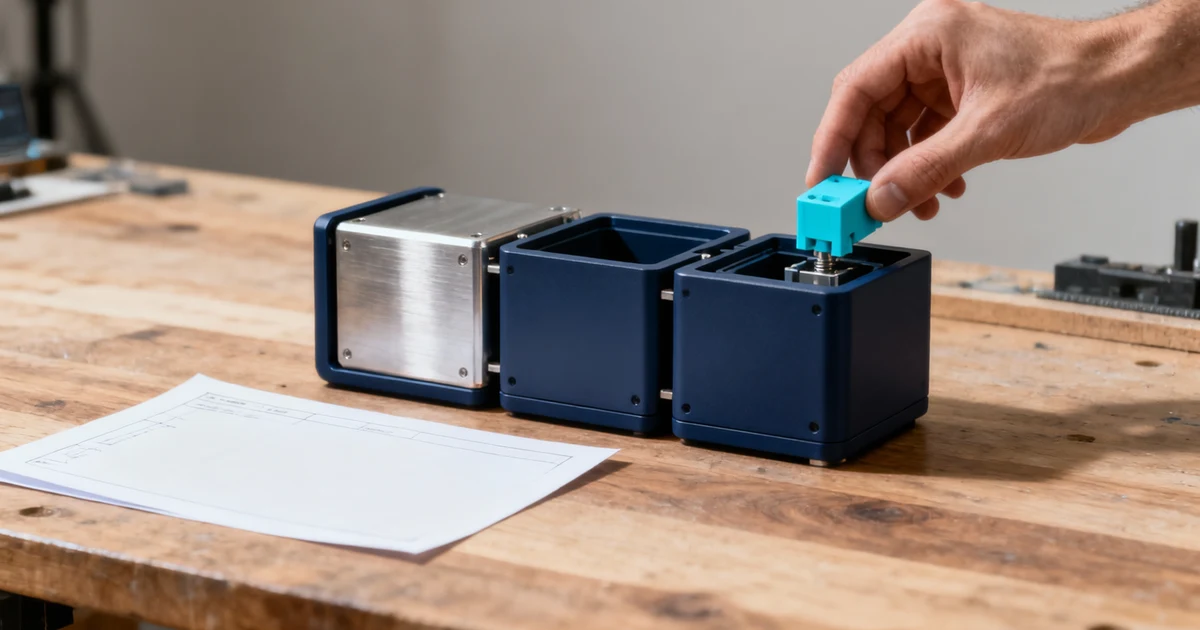
A useful first Harness plugin has a narrow job and a visible result. A panel that displays a fixed project checklist is a better learning exercise than an extension that edits files, calls external services, and manages credentials at the same time. When the small version works, you have a baseline for further changes.
Harness dsh-v0.2.1-alpha.1, released October 3, 2026, adds a plugin-manager entry that opens Creator mode with a prepared draft. This tutorial uses that workflow to design and inspect a local plugin. The steps follow the version-pinned documentation; the example is an acceptance exercise, not a claim that a generated package has already passed a live Harness test.
Prepare a workspace you can inspect
Use an installation whose version you have checked, a configured model provider, and an empty directory for this exercise. If Harness is new to you, complete the local quick start first. Keep the exercise separate from the only copy of an important project.
The output should be a plugin source directory plus a short explanation of how that version of Harness loads it. Ask the agent to identify the package entry, dependencies, and bundle configuration rather than assuming that a lone TypeScript file is installable through the plugin manager.
Choose a concrete acceptance target: a panel titled Project checklist with three fixed rows. The first version should not discover files automatically or save state. Those are reasonable later features, but each adds behavior that has to be reviewed and tested.
Open Creator and inspect the draft
In the sidebar, open Plugins. Use the arrow beside Add plugin, then select Let the agent create a plugin. The plugin-manager reference documents this action when the relevant preset UI contributes it.
The action opens Creator mode. It does not start generation until you send the request. Check the selected workspace and any carried-over file, folder, or session references. An old reference can quietly change which project the agent thinks it should modify.
Use a request with a result you can count and inspect:
Create a local Harness plugin for this empty workspace. Target the Harness version installed here and inspect its available documentation before choosing APIs. Add a Project checklist panel with exactly three static rows: Review inputs, Inspect output, Record result. Use no network requests, credentials, automatic file writes, or background timers. Before editing, identify the files you will create. Afterward, explain how to load the local bundle and how to disable it. Report any validation you could not run.
The constraints keep the exercise small. They also make unexpected dependencies easier to spot. A package for a static panel has little reason to introduce an HTTP client or a scheduling service.
Read the generated structure before installing it
The official first-plugin tutorial explains the basic Cordis model: a plugin exports an apply function, and the context passed to it is where contributions are registered. The context is therefore a useful starting point when tracing what generated code will do.
That introductory example is not a complete recipe for a distributable UI bundle. For the generated panel, ask the agent to trace the real entry point to its registration and rendering code. It should be possible to explain why every source file exists without reading an unrelated application framework tutorial.
Inspect the package manifest and install scripts as well. Confirm that dependencies belong to the intended implementation, that referenced files exist, and that commands use the actual project directory. If the agent says a build passed, retain the command and its exit result. A plausible explanation of a build is not the build output.
| Item to inspect | Evidence to look for |
|---|---|
| Entry point | The manifest or bundle configuration resolves to a real file |
| Panel registration | A specific call connects the plugin to its visible UI |
| Dependencies | Each added package has an explained purpose |
| Lifecycle | Disabling the plugin removes its contribution cleanly |
| Validation | Commands, results, and remaining untested behavior are stated |
Install the local bundle and verify the loaded version
Return to Plugins → Add plugin. The manager accepts an absolute local directory as well as registry packages and Git sources. Use the directory that the generated installation instructions identify as the bundle root, not whichever nested folder happens to contain a source file.
Read the installation preview and trust notice, then install and enable the relevant bundle or plugin rows. The manager distinguishes installed bundles from the built-in inventory shown in Settings. If the panel is absent, check that the intended row is enabled before changing source code.
Keep the package identity and displayed version with your test notes. The October release improves version reporting and code-source visibility. An older installed package can otherwise make a correct edit appear ineffective. Development-directory watching and replacing an installed package version are different paths; the latter still needs a restart.
Test a full enable-and-disable cycle
First enable the plugin and inspect the panel. Count the rows, verify their order, and check that the text matches the request. Then disable the plugin and confirm that the panel disappears. Enable it again and check that it appears once, with no duplicate entry or leftover element.
Next change one row of text in the source, using the documented development workflow for the generated bundle. Check whether the visible panel reflects the edit. If it does not, establish the loaded source path and restart requirements before asking the agent to rewrite the component.
Finally reopen the application and repeat the visible checks. Record which steps passed and which needed a restart. These observations tell you more about the plugin's actual lifecycle than a single successful screenshot.
Diagnose failures at the right layer
A missing panel can mean several things: the package did not resolve, the bundle was not enabled, registration failed, or rendering failed. Check those stages in that order. The introductory Cordis documentation specifically notes that a resolution failure can be less obvious during early boot, so verify path spelling when a new entry seems to do nothing.
For older examples, watch for removed invariant exports and the change from the composer's stats row to activity and usage. These are version-specific migration issues described in the 0.2.1 release notes. They are not reasons to disable compatibility checks broadly.
Once the static panel passes, add one capability at a time. Reading a chosen local file is a manageable next step if the path and failure behavior are explicit. Leave persistence and external requests for separate iterations. Keep the working minimal version so that a later failure can be compared against something you actually observed working.
For the broader upgrade context, see the Harness 0.2.1 review. If your intended plugin only exists to trigger a reminder, first check the built-in automation workflow; the host may already provide the scheduling behavior you need.